

 By Kaustubh Saini
Almost everyone's first program prints the same two words: "Hello, World!" on the screen. The Python Hello World program is a single short line, yet writing it and watching it run does real work. It proves your setup is wired up correctly, and it shows you the basic shape that every Python program shares. Here we'll write that line, pull it apart piece by piece, run it a few different ways, and then grow it from one line into something that feels like actual code.
None of this assumes you've coded before. If you can open an editor and type, you're ready. Type each example yourself and run it, because you'll pick this up far faster by doing than by reading along.
What you need before you start
Two things, really. Python installed on your computer, and somewhere to write code. If Python isn't set up yet, follow our guide to installing Python first, then confirm it works by running this in a terminal:
python --version
# Output: Python 3.14.6
As for where to write code, you can use the simple editor that comes with Python (IDLE), an online editor, or a full editor like VS Code. Our guide to Python IDEs and setup covers the choices. Any of them works for this lesson.
The Hello World program
Here's the whole thing. One line:
print("Hello, World!")
# Output: Hello, World!
That's complete and ready to run. No setup code, no extra structure, nothing else needed. This is one big reason Python makes such a popular first language: the gap between "I want to print something" and "I printed something" is a single line.
What each part means
Three small pieces are doing the work here, and getting them now will help with everything you write later.
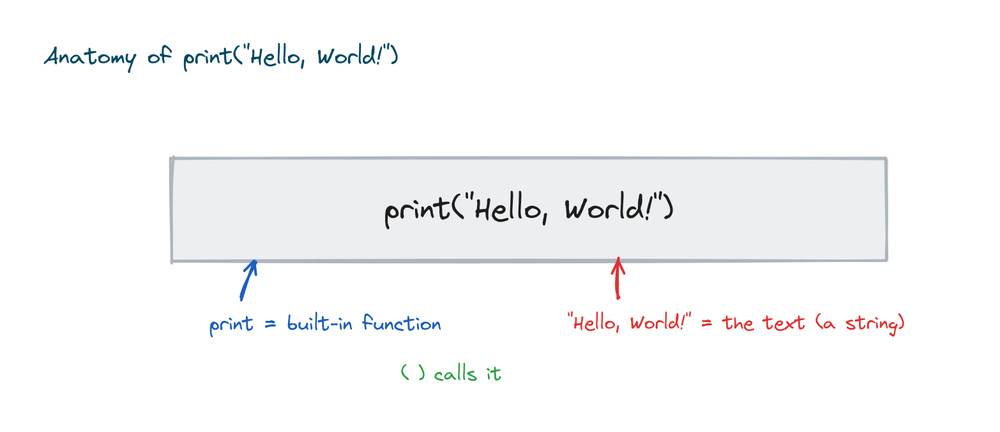
print is a built in function. A function is just a named action, and this one's job is to show something on the screen. The round brackets, ( ), are how you call the function and hand it the thing you want shown. The text inside the quotes, "Hello, World!", is a string, which is programming's word for a piece of text. Read straight through, the line says "display this text".
You'll use print() constantly, not just for hello programs but to check what your code is doing at every stage. It's the simplest way to peek inside a running program.
Strings and quotes
The quotes around your text aren't decoration. They mark where the text starts and ends. Python takes either single or double quotes, as long as the opening and closing quote match.
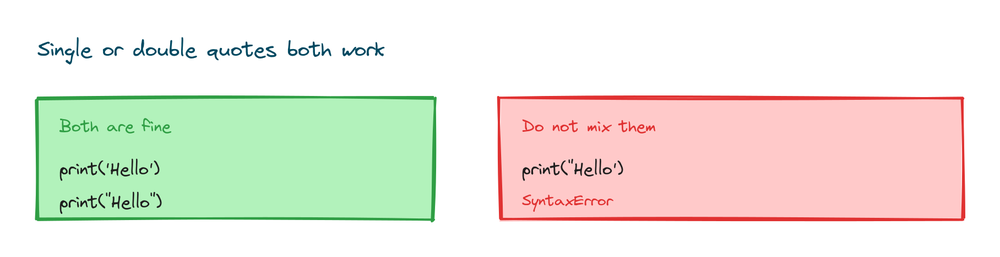
print('Hello, World!')
print("Hello, World!")
# Output:
# Hello, World!
# Hello, World!
Both lines do exactly the same thing. Double quotes come in handy when your text itself contains an apostrophe, because the apostrophe won't be mistaken for the closing quote:
print("It's a sunny day")
# Output: It's a sunny day
One rule to remember: don't open with one kind of quote and close with the other. print("Hello') will fail.
Three ways to run your program
There's more than one place to run Python, and they all produce the same result. Pick whichever fits your setup.
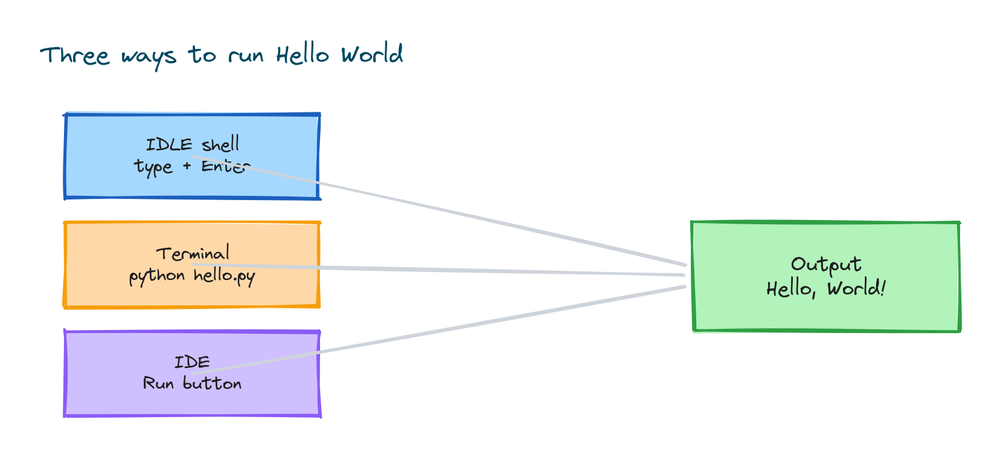
In the interactive shell
Type python in a terminal, or open IDLE, to start the interactive shell. Then type the line and press Enter. It runs straight away:
>>> print("Hello, World!")
Hello, World!
The >>> is the shell's prompt, which you don't type yourself. The shell is great for quick experiments, but it doesn't save your work, so it isn't where you build real programs.
As a saved file
For anything you want to keep, put your code in a file. Create one named hello.py with this inside:
# hello.py
print("Hello, World!")
# Output: Hello, World!
Then run that file from a terminal that's in the same folder:
python hello.pyWith an IDE Run button
In an editor like VS Code or IDLE, you can skip the terminal and just press the Run button. The editor runs the file and shows the output in a panel. This is the most comfortable option once your setup is ready.
A full walkthrough with a file
Let's do the saved file version slowly, since that's how you'll work most of the time. Whatever happens behind the scenes, the path from file to output stays the same.
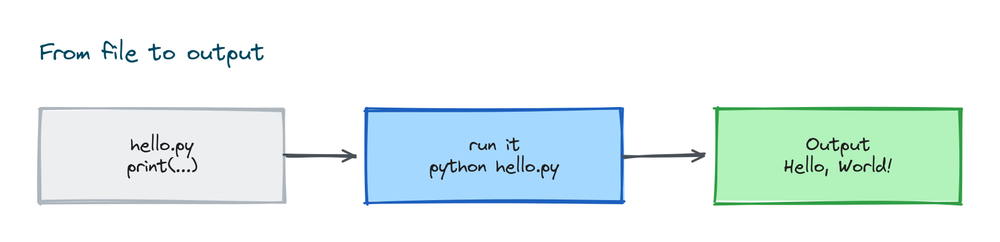
The steps go like this: open your editor, create a new file, type the one line, save it as hello.py, then run it. Here's a slightly fuller version of the file that also greets you by name, so you can see more than one line working together:
# hello.py
print("Hello, World!")
print("My name is Aman")
print("I am learning Python")
# Output:
# Hello, World!
# My name is Aman
# I am learning Python
Notice that each print() starts a new line on the screen. That's the default behavior, and you can change it, which we'll do next.
Printing more than one thing
You can pass several values to a single print() by separating them with commas. Python drops a space between them automatically:
print("Hello,", "World!", "from Python")
# Output: Hello, World! from Python
This also lets you mix text and numbers without any extra work:
print("2 plus 3 is", 2 + 3)
# Output: 2 plus 3 is 5
Customizing print with sep and end
The print() function has two handy options that beginners rarely know about. sep changes what goes between the values, and end changes what goes at the very end instead of a new line.
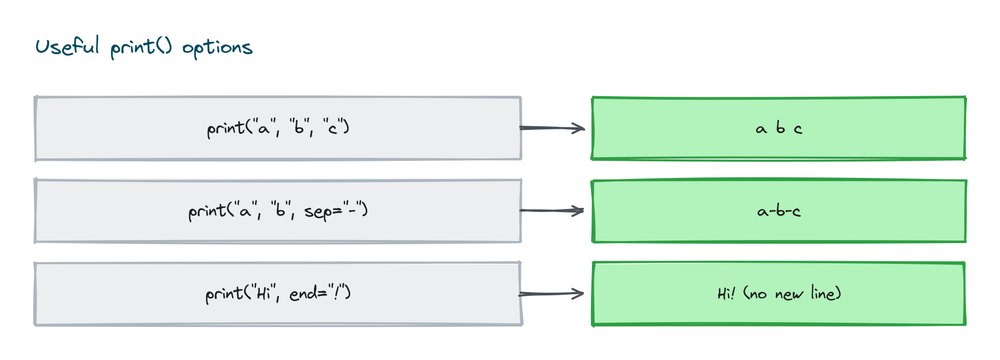
print("a", "b", "c")             # Output: a b c
print("a", "b", "c", sep="-")    # Output: a-b-c
print("2026", "06", "28", sep="/")  # Output: 2026/06/28
By default every print ends with a new line, which is why each one shows up on its own row. Set end to something else to keep the next print on the same line:
print("Loading", end="...")
print("done")
# Output: Loading...done
Putting your name in the message
A greeting feels friendlier with a name in it. The cleanest way to drop a value into text is an f-string, written by putting an f before the opening quote and the value in curly braces:
name = "Riya"
print(f"Hello, {name}!")
# Output: Hello, Riya!
If you want the program to ask the user for their name, use input(), which waits for them to type something and hands it back:
name = input("What is your name? ")
print(f"Hello, {name}!")
# If you type Karan, the Output is:
# Hello, Karan!
Common errors and how to fix them
Beginners hit the same handful of errors with their first program. None of them are serious, and seeing them now means you'll recognize them right away later.
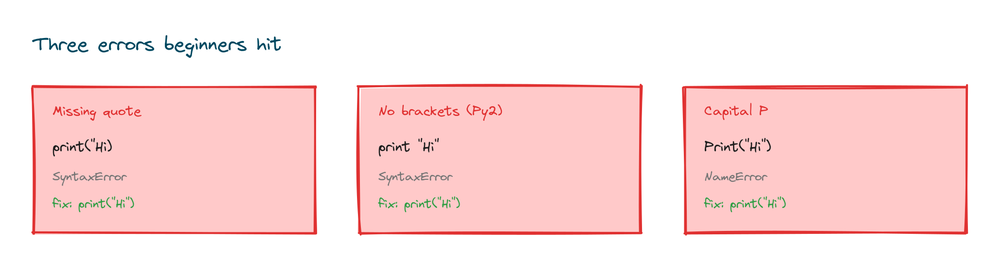
The most common is a missing quote, which leaves a string unfinished:
print("Hello, World!)
# SyntaxError: unterminated string literal
Python is telling you a string was opened but never closed. Add the missing quote. The next one comes from old Python 2 tutorials, where print was written without brackets:
# Python 2 style, no longer valid:
# print "Hello, World!"

# Python 3 always uses brackets:
print("Hello, World!")
# Output: Hello, World!
The third is capitalization. Python is case sensitive, so Print isn't the same as print:
Print("Hello")
# NameError: name 'Print' is not defined
The fix is always to write the function in lowercase: print.
Why is it always "Hello, World!"?
The tradition goes back decades, to early programming books that used "Hello, World!" as the simplest possible example of a program that produces visible output. It stuck because it does exactly what a first program should. It's short, it works, and it proves your tools are set up before you try anything harder. You're now part of a very long line of programmers whose first program said hello.
Practice exercises
Type each one and run it. The goal is to get comfortable writing and running code, so do them yourself before peeking at the solution.
Greet yourself
Print a single line that says hello and includes your name.
# Solution
print("Hello, I am Sara")
# Output: Hello, I am Sara
Three facts
Use three print statements to show your favorite food, color, and number.
# Solution
print("Food: pizza")
print("Color: blue")
print("Number: 7")
# Output:
# Food: pizza
# Color: blue
# Number: 7
A custom separator
Print the three parts of today's date joined by slashes using sep.
# Solution
print("2026", "06", "28", sep="/")
# Output: 2026/06/28
Use an f-string
Store a city in a variable and print "I live in <city>" using an f-string.
# Solution
city = "Delhi"
print(f"I live in {city}")
# Output: I live in Delhi
One line, no break
Print "Hello" and "World" with two print statements, but keep them on the same line.
# Solution
print("Hello", end=" ")
print("World")
# Output: Hello World
Common mistakes to avoid
- Missing or mismatched quotes. Open and close a string with the same quote type, or you get a
SyntaxError. - Forgetting the brackets. In Python 3, print is a function: it is always
print("hi"), neverprint "hi". - Capitalizing the function name. Python is case sensitive, so
PrintandPRINTboth fail. Useprint. - Typing the
>>>prompt. That symbol belongs to the shell. You only type the code that comes after it. - Saving the file without
.py. Python files must end in.pyto run. - Smart quotes from a word processor. Curly quotes copied from a document are not the same as straight quotes and cause errors. Type your code in a real editor.
Frequently asked questions
How do I write Hello World in Python?
Write a single line, print("Hello, World!"). Save it in a file ending in .py and run it, or type it straight into the Python shell. It prints "Hello, World!" to the screen.
What does print() do in Python?
It displays whatever you put inside its brackets. Pass it text, numbers, or several values separated by commas, and it shows them on the screen, then moves to a new line.
Why does my Hello World give a SyntaxError?
Almost always a missing quote or bracket. Check that every opening quote has a matching closing one and that print uses ( ). The error message points to the line, so you can find it fast.
Can I use single or double quotes?
Both work, as long as you match them. Reach for double quotes when your text contains an apostrophe, so it isn't mistaken for the closing quote.
How do I print without a new line?
Pass end="" to print, like print("Hi", end=""). The next print then carries on the same line instead of starting a new one.
How do I put a variable inside the printed text?
Use an f-string. Put f before the quotes and the variable in curly braces, like print(f"Hello, {name}"). Python swaps {name} for the variable's value.
Do I need the internet to run Python?
No. Once Python is installed, your programs run locally with no connection. Online editors need a browser, but a local install doesn't.
Key takeaways
- The Python Hello World program is one line:
print("Hello, World!"). - print is a function, the brackets call it, and the quoted text is a string.
- Single and double quotes both work, as long as you match them.
- Run code in the interactive shell, as a saved
.pyfile, or with an IDE Run button. - Use commas to print several values, and
sepandendto control spacing and line breaks. - Drop variables into text with an f-string, like
print(f"Hello, {name}").
You've written, run, and customized real Python. Next up are the rules that hold every program together, which you can learn in our guide to Python syntax.