

 By Kaustubh Saini
Before you can write a single line of Python, you need it installed on your computer. The good news is that it is free and the setup takes only a few minutes. The slightly tricky part is one checkbox on Windows that trips up almost every beginner. This guide walks you through downloading and installing Python on Windows, macOS, and Linux, then confirms it works and gets you running your first program.
Follow the section for your operating system, then come back to the verification steps that apply to everyone.
Which Python should you download?
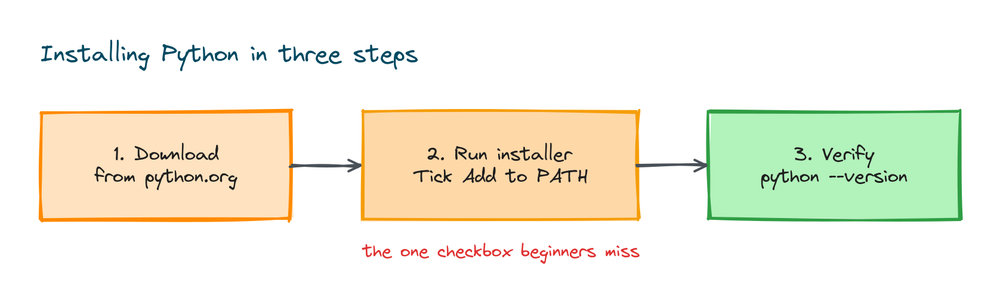
Always download Python 3, the current major version, from the official site at python.org. As of now the latest release is Python 3.14. Do not use Python 2, which reached its end of life in 2020 and no longer gets updates. Whenever you see a choice, pick the newest stable 3.x release.
One quick note before you install anything: many computers already have some version of Python. It is still worth installing the latest from python.org so you get a current, predictable version and the tools that come with it.
How to install Python on Windows
Windows does not come with Python ready to use, so you download it from the official site.
Step 1: Download the installer
Go to python.org, open the Downloads section, and click the button to download Python for Windows. It gives you a file ending in .exe.
Step 2: Tick "Add Python to PATH"
This is the most important step. When the installer opens, there is a checkbox near the bottom that says Add Python to PATH. Tick it before you click Install. This is what lets you run python from any terminal. If you skip it, the commands below will fail with a "not recognized" error.
Step 3: Install
Click Install Now and let it finish. Once it is done, open a fresh Command Prompt or PowerShell window and check the version:
python --version
# Output: Python 3.14.6
If you see a version number, you are done. If you get an error, the most likely cause is the PATH checkbox. The fix is in the troubleshooting section below.
How to install Python on macOS
Macs ship with an old version of Python that you should not rely on for your own projects, so install a fresh copy.
Option 1: The official installer
Go to python.org, download the macOS installer (a .pkg file), open it, and follow the prompts. When it finishes, open the Terminal app and check the version. On macOS you often use python3 explicitly:
python3 --version
# Output: Python 3.14.6
Option 2: Homebrew
If you use the Homebrew package manager, one command installs Python and keeps it easy to update:
brew install python
# then check it
python3 --version
# Output: Python 3.14.6
How to install Python on Linux
Most Linux distributions already include Python 3, but it may not be the newest version. On Debian or Ubuntu based systems you install or update it with the package manager:
sudo apt update
sudo apt install python3 python3-pip
# then check it
python3 --version
# Output: Python 3.14.6
On Fedora the command uses dnf instead:
sudo dnf install python3 python3-pip
python3 --version
# Output: Python 3.14.6
Same Python on every system
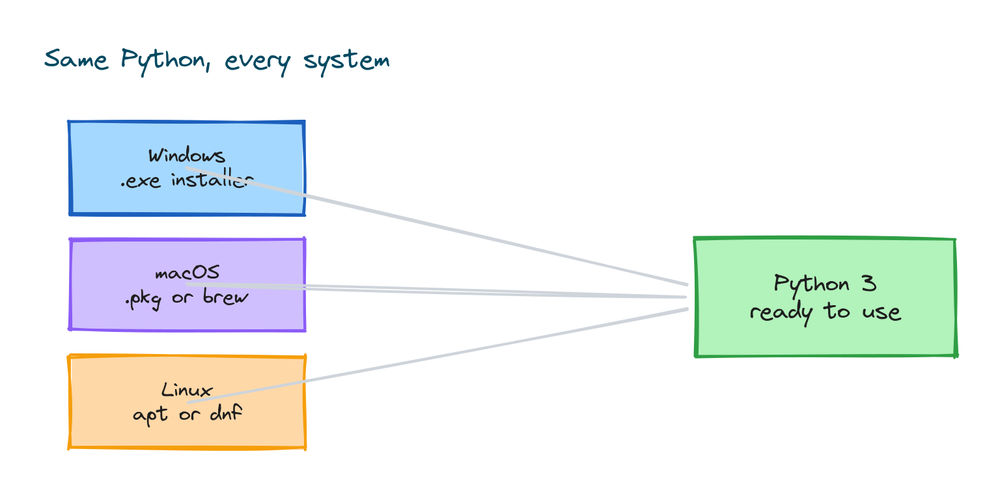
Whichever system you are on, the result is the same: a working Python 3 you can call from a terminal. The download method differs (an installer on Windows and macOS, the package manager on Linux), but the language and the commands you run afterward are identical.
Check that pip is installed too
pip is Python's package installer, the tool you use to add extra libraries. It comes bundled with modern Python, so you usually get it for free. Confirm it is there:
pip --version
# Output: pip 25.x from ... (python 3.14)
If pip is not found, try pip3 instead, or on macOS and Linux use python3 -m pip --version. Once pip works, installing a library is a single command, for example pip install requests.
Run your first Python program
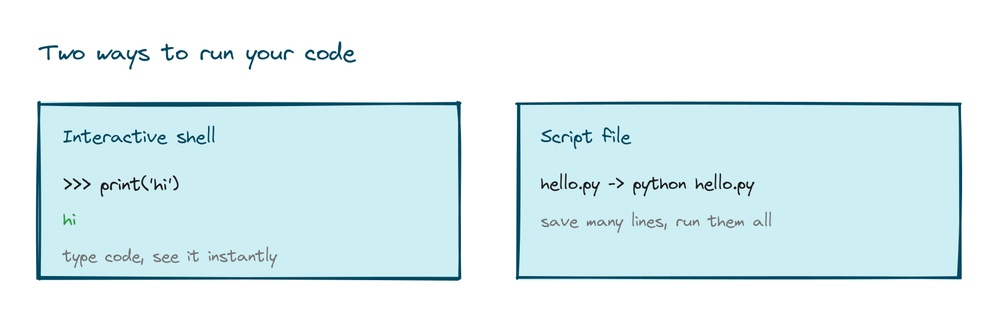
With Python installed, let us prove it works end to end. There are two easy ways.
The interactive shell
Type python (or python3) in your terminal to open the interactive shell, then type code directly:
>>> print("Hello from Python")
Hello from Python
>>> 7 * 6
42
>>> exit()
A script file
For anything longer, save your code in a file. Create a file called hello.py with this inside:
# hello.py
print("My first Python program")
name = input("What is your name? ")
print("Welcome,", name)
Then run it from the terminal in the same folder:
python hello.py
# Output:
# My first Python program
# What is your name? (you type your name, then it greets you)
Choosing an editor or IDE
You can write Python in any text editor, but a proper code editor makes life much easier with features like syntax highlighting and an in built run button. Python itself comes with a simple editor called IDLE, which is perfect for your first steps. When you want more, VS Code is a popular free choice, and PyCharm is a powerful option built specifically for Python. Any of these will do; the language runs the same no matter where you type it.
A quick word on virtual environments
As you start installing libraries for different projects, it is good practice to keep each project's packages separate so they do not clash. Python has a built in tool for this called venv. You do not need it for your very first scripts, but it is worth knowing it exists.
python -m venv myenv
# then activate it (Windows)
myenv\Scripts\activate
# or on macOS and Linux
source myenv/bin/activate
Once activated, any package you install stays inside that environment instead of affecting your whole system.
Troubleshooting common install problems
- "python is not recognized" on Windows. Python is installed but not on your PATH. The simplest fix is to run the installer again, choose Modify, and make sure Add Python to PATH is ticked. Then open a new terminal.
- The wrong version shows up. If
pythonpoints to an old version, trypython3. On Windows you can also use the launcher,py --version, to see installed versions. - pip not found. Use
python -m pipinstead of plainpip, which works even when pip is not on the PATH. - Permission errors on macOS or Linux. Avoid changing the system Python. Install with the official installer or your package manager, and use a virtual environment for project packages.
- Changes not taking effect. Always open a fresh terminal window after installing. An old window will not know about the new PATH.
Practice exercises
Once Python is installed, run these quick checks to confirm everything works and to get comfortable running code.
Exercise 1: Confirm the install
Open a terminal and print the version, then open the interactive shell and do one calculation.
# In the terminal
python --version
# Output: Python 3.14.6

# In the shell (type python first)
>>> 12 * 12
144
Exercise 2: Your first script file
Create a file called info.py that prints two lines, then run it with python info.py.
# info.py
print("Python is installed")
print("And it runs my scripts")
# Output:
# Python is installed
# And it runs my scripts
Exercise 3: Check pip
Confirm the package installer is available, then see how you would install a library (you do not have to actually install it).
# Solution
pip --version
# Output: pip 25.x ... (python 3.14)

# This is how you would add a library
# pip install requests
Frequently asked questions
Where do I download Python?
From the official site, python.org, in the Downloads section. It is free. Always choose the latest stable Python 3 release for your operating system.
Why does python --version not work on Windows?
Almost always because the "Add Python to PATH" checkbox was not ticked during installation. Run the installer again, choose Modify, tick that box, then open a new terminal.
What is the difference between python and python3?
On Windows the command is usually python. On macOS and Linux, where an older Python may exist, you often use python3 to be sure you get Python 3. Both run the same language.
Do I need pip, and is it included?
pip is Python's package installer, used to add libraries. Modern Python includes it automatically, so you normally do not install it separately. Check with pip --version.
Is Python free to install?
Yes. Python is free and open source for personal and commercial use. You never need a license or a paid account to download or run it.
Key takeaways
- Download Python 3 from python.org; use the latest stable release and never Python 2.
- On Windows, tick "Add Python to PATH" during setup, or the commands will not work.
- On macOS and Linux you often run it as
python3; the package manager makes updates easy. - Confirm the install with
python --versionand check pip withpip --version. - Run code in the interactive shell or save it in a
.pyfile and run that file. - Use an editor like IDLE or VS Code, and learn virtual environments as your projects grow.
With Python installed and your first program running, you are ready to actually learn the language. A good next step is the main Python tutorial, which lays out what to learn and in what order.