

 By Kaustubh Saini
Almost everyone's first line of Python is a print(). It puts text and values on the screen, which is how you actually see what your program is doing. It's also the quickest way to check your own work while you're learning, so it pays to know it past the usual "print hello world".
We'll start from the plain call and build up to the options most beginners never stumble onto: printing several values at once, changing what goes between them, controlling how a line ends, and tidying up numbers. Every part has a short example you can run.
What does print() do?
The print() function takes one or more values, turns them into text, and writes them to the console, the text output area. Once it's done, it normally drops to a new line so the next print starts fresh.
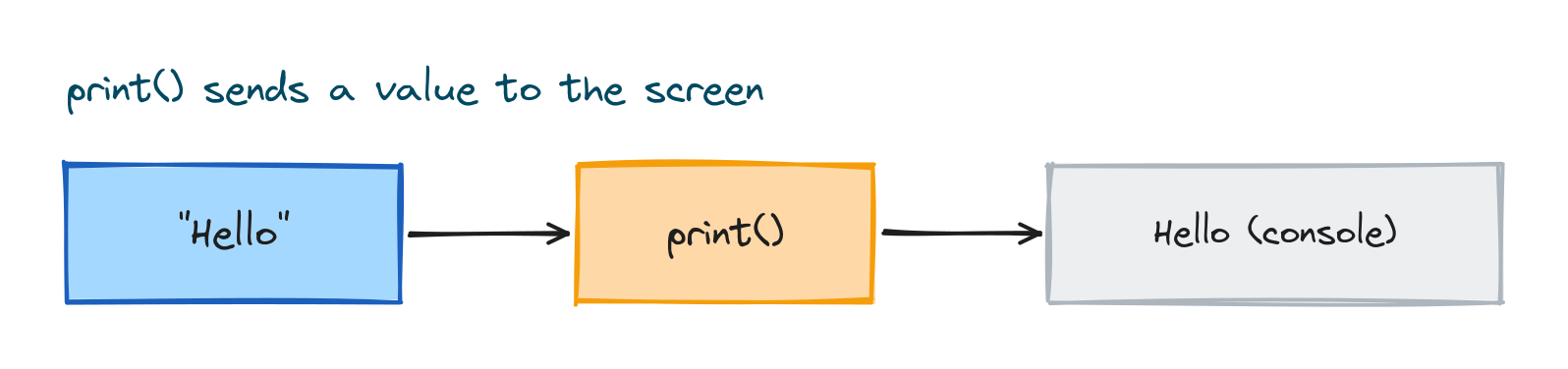
print("Hello, world")
# Output: Hello, world
The text inside the quotation marks is a string, just a piece of text. You can print strings, numbers, the result of a calculation, or whatever's stored in a variable.
print(42)
print(3 + 4)
# Output:
# 42
# 7
The parts of a print() call
A call to print() has a few parts worth naming, because they turn up again in its more useful options. There's the function name, the values you pass in, and two optional settings called sep and end.
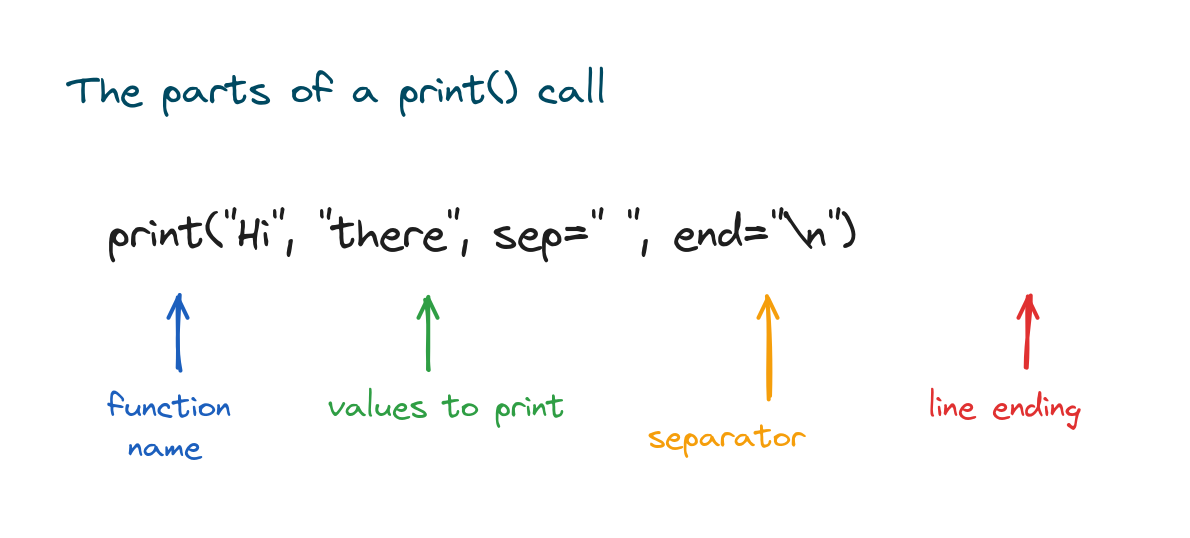
You don't have to touch sep and end at all. They come with sensible defaults. But knowing they're there unlocks a lot of control, which the next few sections get into.
Printing several values at once
You can pass more than one value to a single print(), separated by commas. Python prints them in order with one space between each, so you don't have to stitch them together yourself.
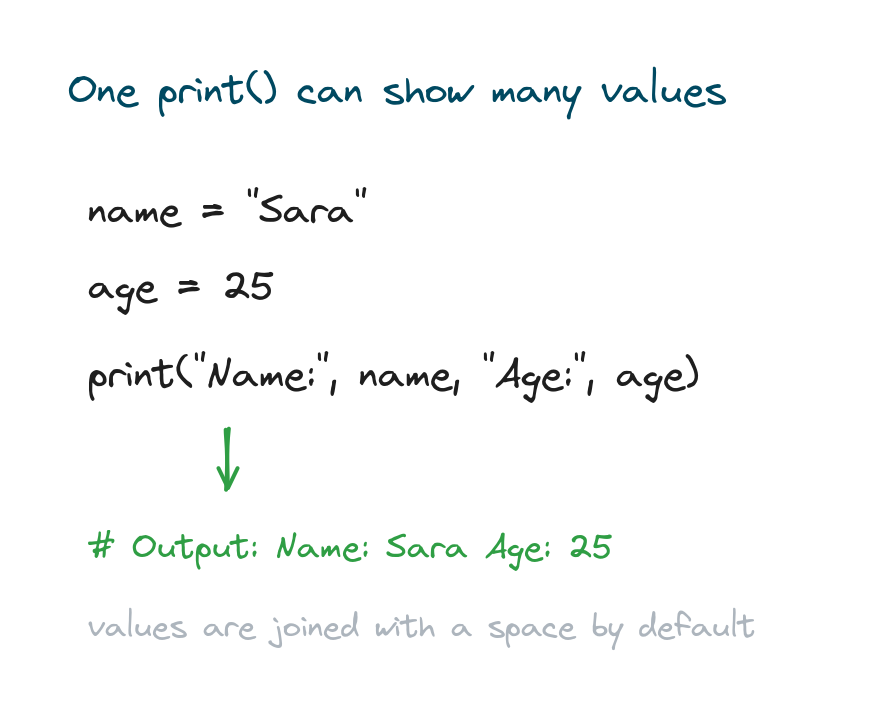
name = "Sara"
age = 25
print("Name:", name, "Age:", age)
# Output: Name: Sara Age: 25
This is the easiest way to mix labels and values. Notice that text and numbers go in the same call without any fuss, and Python handles the conversion for you.
Changing the separator with sep
By default the values you print are joined with a single space. The sep option lets you swap in something else, a comma, a dash, or nothing at all.
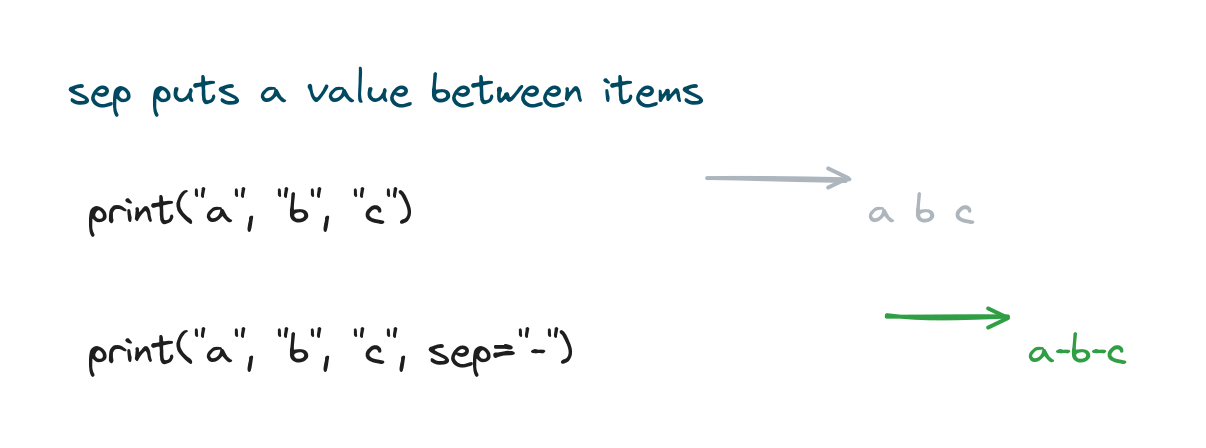
print("2024", "06", "29", sep="-")
print("a", "b", "c", sep="")
# Output:
# 2024-06-29
# abc
That's handy for building dates, file paths, or any string where the pieces need a specific character between them.
Controlling the line ending with end
After it prints, print() tacks on a newline so the next output starts on a fresh line. That newline is the default value of end. Change end and you change what comes after the printed text, which is how you keep two prints on the same line.
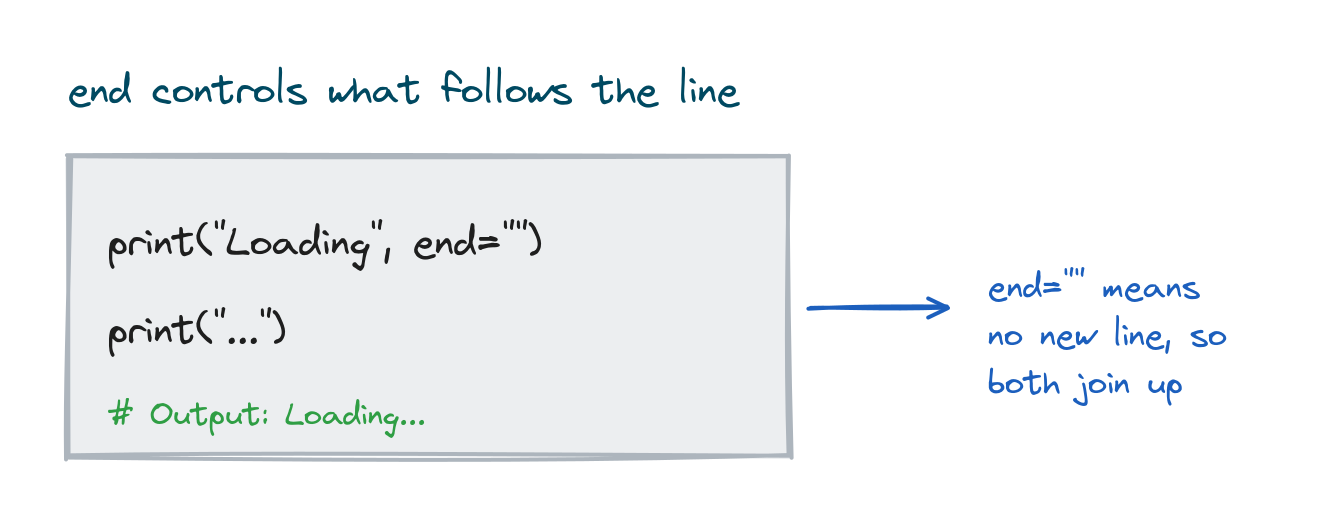
print("Loading", end="")
print("...")
# Output: Loading...
Set end to an empty string and the next print picks up right where the last one stopped. You can also set it to something else, like a space or a custom marker.
for i in range(1, 4):
    print(i, end=" ")
print("done")
# Output: 1 2 3 done
Printing variables and expressions
Most of the time you're printing what's in a variable or the result of a small calculation. You don't put the variable in quotes. Quotes would print the name as literal text instead of its value.
price = 100
quantity = 3
print("Total:", price * quantity)
# Output: Total: 300
Wrap price in quotes and you'd get the word, not the number, so keep variable names outside the quotes.
Formatting text with f-strings
When you want to slip values neatly inside a sentence, an f-string is the cleanest way to do it. Put the letter f right before the opening quote, then write any variable or expression inside curly braces. Python swaps the braces out for the value.
name = "Ravi"
score = 92
print(f"{name} scored {score} out of 100")
# Output: Ravi scored 92 out of 100
f-strings can round numbers too, which keeps the output readable:
pi = 3.14159
print(f"Pi is about {pi:.2f}")
# Output: Pi is about 3.14
There's more to this corner of Python than one example can hold, including older styles like .format() and the % operator. But f-strings are the modern default, and they're the one to learn first.
Printing without a newline, the longer way
People often ask how to print on the same line over and over, for a row of progress dots or a simple bar. The end option is the answer, paired with a loop.
for _ in range(5):
    print("#", end="")
print()
# Output: #####
The bare print() at the end just prints the newline, so whatever comes after it starts on a new line.
Where does print() send its output?
By default print() writes to what's called standard output, the normal console. It's worth knowing there's also an optional file setting that can send the text somewhere else, like into a file. For everyday use, though, the console default is exactly what you want.
Practice exercises
Run each one and check your output against the comment.
Greet a user
Store a name in a variable and print "Hi, name!" using an f-string.
# Solution
name = "Mia"
print(f"Hi, {name}!")
# Output: Hi, Mia!
A simple total
Print a label and a calculated total in one call.
# Solution
apples = 4
price = 25
print("Cost:", apples * price)
# Output: Cost: 100
Build a date
Use sep to print 2026, 06, 29 joined by slashes.
# Solution
print("2026", "06", "29", sep="/")
# Output: 2026/06/29
Same line
Print the numbers 1 to 5 on a single line separated by spaces.
# Solution
for i in range(1, 6):
    print(i, end=" ")
# Output: 1 2 3 4 5
Common mistakes
- Quoting a variable name.
print("age")prints the word;print(age)prints the value. - Forgetting the parentheses. In Python 3,
printis a function, so it always needs().print "hi"is a syntax error. - Capitalising it. The function is
print, all lowercase.Printraises aNameError. - Expecting a space after the last item. The separator only goes between values, not after the final one.
- Mixing up sep and end.
sepgoes between values;endgoes after the whole line.
Frequently asked questions
How do I print a variable in Python?
Pass it to print() without quotes, like print(age). To drop it inside a sentence, use an f-string such as print(f"Age: {age}").
How do I print without a new line?
Set end to an empty string: print("text", end=""). The next print continues on the same line.
How do I print multiple variables on one line?
Separate them with commas in one call: print(a, b, c). Python prints them with a space between each, and you can change that with sep.
What is the difference between print and return?
print() shows a value on the screen for a person to read. return hands a value back from a function so the rest of your program can use it. They're not interchangeable.
Why does print need parentheses?
In Python 3, print is a regular function, and functions are called with parentheses. The old Python 2 form without them no longer works.
How do I print a number with two decimal places?
Use an f-string with a format spec: print(f"{value:.2f}") rounds to two decimals.
Key takeaways
print()writes text and values to the console and adds a newline by default.- Pass several values separated by commas to print them together with spaces.
- sep changes what goes between values; end changes what follows the line.
- Use an f-string,
f"{value}", to drop variables neatly inside text. - In Python 3,
printis a lowercase function and always needs parentheses.
Printing is only half of a first program. The other half is reading what the user types back, so the next step is the Python input function, where the same console you've been writing to becomes a place to listen.