

 By Kaustubh Saini
You've got Python installed. Now where do you actually type your code? You can use the plainest text editor on your machine and it'll work, but a tool built for coding makes the day go smoother. It colors your code, finishes words as you type, points out mistakes before you run anything, and hands you a Run button. Below we'll sort out what an IDE is, look at the popular options for Python, help you pick one, and walk through the setup so you can start writing real programs.
One thing up front. There's no single "best" tool that fits everyone. What suits you depends on whether you're just starting out or building bigger projects, and on the kind of work you're after. By the end you'll know which one to install and how to get it running.
What is an IDE?
IDE stands for Integrated Development Environment. It's one program that bundles everything you need to write, run, and fix code into a single window. Without it, you'd be flipping between a plain text editor, a separate terminal to run things, and yet another tool to chase down bugs. An IDE puts all of that side by side so you rarely have to leave the window.
The word "integrated" is the part that matters. Each piece on its own is simple enough. Bolting them together is what saves you time and clears away a lot of the early friction.
Editor or IDE, what's the difference
You'll hear both "code editor" and "IDE" thrown around, and honestly the line between them is fuzzy. A code editor is light and fast, built mostly for editing text, though you can usually extend it with plugins. A full IDE ships with the heavier tools baked in from the start.
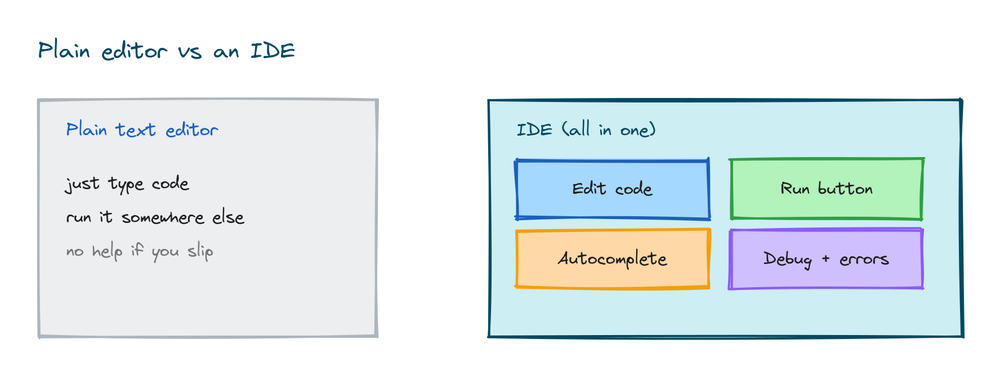
For a beginner the distinction barely registers. Take a modern editor like VS Code, add the Python plugin, and it behaves just like an IDE. So don't get hung up on the label. Pick something comfortable and start coding.
What an IDE actually gives you
It helps to know what those built in tools are, because each one solves a real problem you're going to hit.
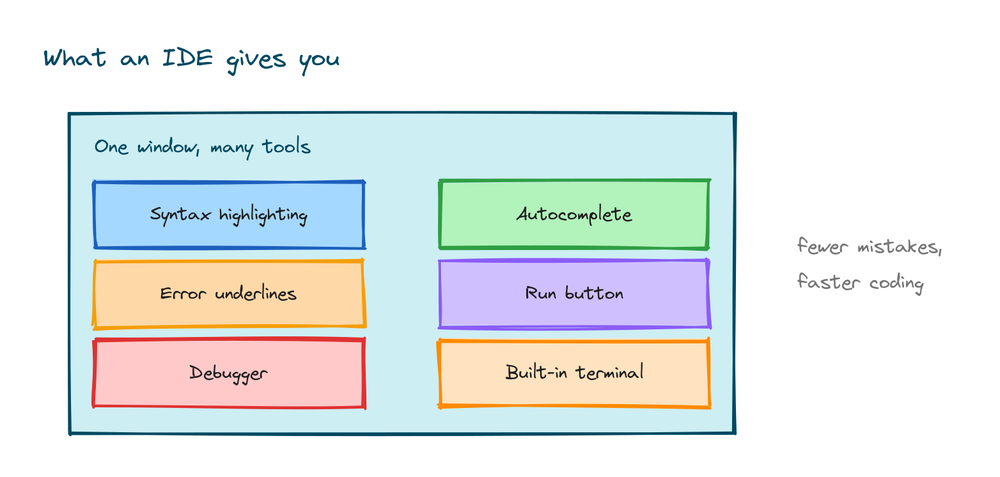
- Syntax highlighting colors keywords, strings, and numbers so code is easier to read.
- Autocomplete suggests the rest of a name as you type, saving keystrokes and typos.
- Error underlines flag mistakes before you even run the program.
- A Run button executes your code with one click, no terminal needed.
- A debugger lets you pause your program and look at what each variable holds.
- A built in terminal keeps the command line right inside the same window.
Do you actually need one?
For your very first programs, no. Python comes with a simple built in editor called IDLE, and that's plenty for learning the basics. You only reach for a bigger tool once your projects grow and you start wanting things like project wide search, debugging, and version control. Start small, then upgrade when you actually feel the limits, not before.
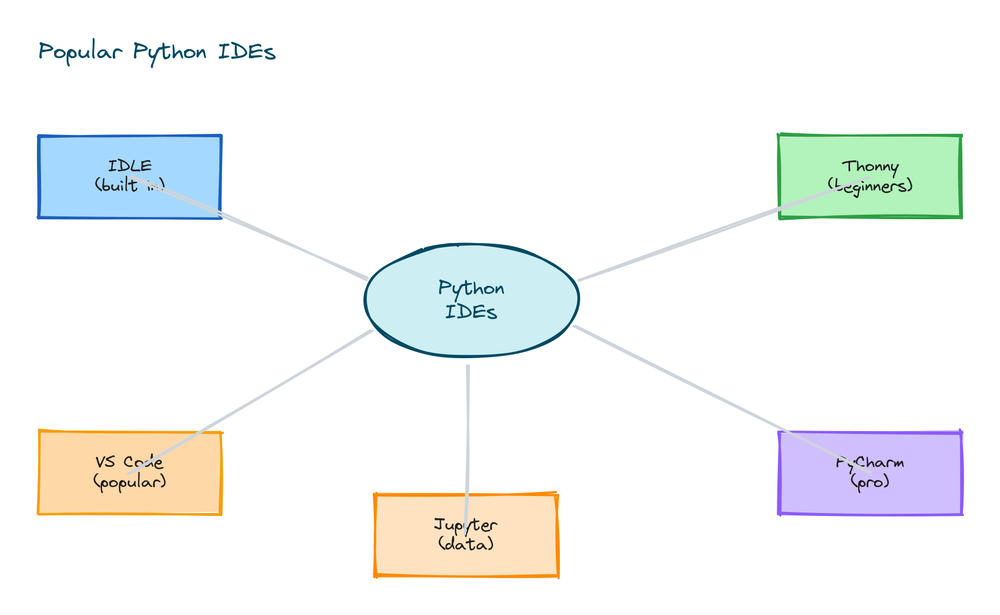
Popular Python IDEs and editors
These are the tools you'll bump into most often, with a note on who each one suits.
IDLE
It ships with Python, so you already have it. Plain and a little dated, sure, but it needs zero setup and is perfect for running your first scripts.
Thonny
Built specifically for beginners. Its standout trick is showing you how your variables change as the code runs, which makes it a lot easier to follow what's happening line by line.
VS Code
A free, fast, and wildly popular editor from Microsoft. Add the Python extension and it turns into a complete environment that grows with you, from your first program all the way to professional work. For most people, this is the best long term choice.
PyCharm
A powerful IDE built only for Python. The free Community edition is great for larger projects, with strong tools for renaming code safely and stepping through bugs. It can feel heavy when you're just getting started, though.
Jupyter Notebook
It runs code in cells inside your browser and shows the result, charts included, right under each cell. This is the standard for data science and for trying out ideas in small pieces.
A quick comparison
| Tool | Best for | Setup effort |
|---|---|---|
| IDLE | First scripts, zero setup | None, comes with Python |
| Thonny | Absolute beginners | Very easy |
| VS Code | General all round use | Easy, add one extension |
| PyCharm | Larger projects | Medium |
| Jupyter | Data science | Medium |
How to choose
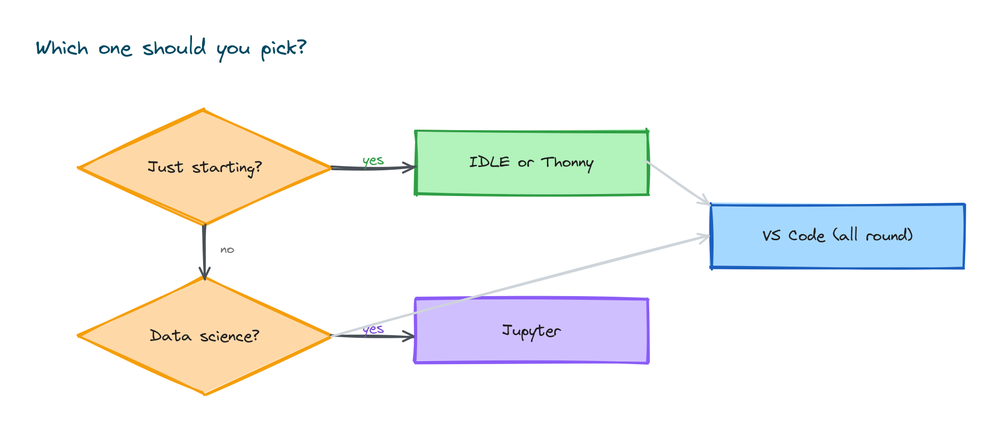
Keep this decision simple. Brand new? Start with IDLE or Thonny, since there's nothing to configure. Want one tool for the long run? Install VS Code. Heading into data science? Learn Jupyter. You can always switch later, and your Python code runs the same in every one of them.
Setting up VS Code for Python
VS Code is the most common pick, so here's the full setup. It takes a few minutes. You'll need Python installed first; if you haven't done that yet, see our guide to installing Python.

Follow these four steps.
- Install VS Code. Download it free from code.visualstudio.com and run the installer.
- Add the Python extension. Open the Extensions panel on the left, search for "Python" by Microsoft, and click Install. This is what teaches VS Code how to run and check Python.
- Open a folder and make a file. Open a folder for your project, then create a new file ending in
.py, for examplefirst.py. - Click Run. Press the play button at the top right, and the output appears in the panel at the bottom.
Running code in IDLE
If you'd rather skip any setup at all, IDLE is already sitting on your machine. It's the fastest way to run a line of Python right now.
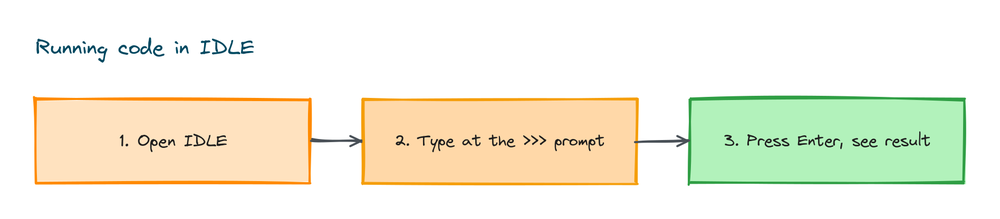
Open IDLE from your applications and you get an interactive prompt. Type a line, press Enter, and it runs instantly. For longer programs, use IDLE's File menu to make a new file, write your code, save it, and run it from the Run menu.
Test that your setup works
Whatever tool you picked, prove it works by running one tiny program. Type this in and run it:
print("My setup works!")
print(2 + 2)
# Output:
# My setup works!
# 4
See both lines? Your environment is ready. This same code runs in IDLE, VS Code, PyCharm, or anywhere else, which is the whole point. The tool is just a comfortable place to write Python. When you're ready, the next step is writing a complete first program, the classic Python Hello World.
Practice exercises
Run these in whichever editor you set up. Each one confirms your tool works and builds the habit.
Print your goal
Write a program that prints your name and your goal for learning Python on two lines.
# Solution
print("Aman")
print("I want to build small automation scripts")
# Output:
# Aman
# I want to build small automation scripts
A quick calculation
Print the result of 15 multiplied by 4 with a short label.
# Solution
print("15 x 4 =", 15 * 4)
# Output: 15 x 4 = 60
Use a variable
Store the name of your editor in a variable and print a sentence using it.
# Solution
editor = "VS Code"
print("I am writing Python in", editor)
# Output: I am writing Python in VS Code
Common mistakes when setting up
- Skipping the Python extension in VS Code. Without it, VS Code does not know how to run or check Python. Install it first.
- Python not on PATH. If the Run button or terminal cannot find Python, the install step missed the PATH option. Reinstall and tick "Add Python to PATH".
- Picking a heavy IDE too early. A big tool has many menus you do not need yet. Start simple and grow into the features.
- Saving the file without a
.pyending. The editor needs the.pyextension to treat the file as Python. - Expecting the tool to teach the language. An IDE makes coding smoother, but you still learn Python by writing and running code.
Frequently asked questions
What is the best IDE for Python beginners?
IDLE and Thonny, since they need no setup. VS Code is the better long term pick, because it stays useful from your first program right through to professional projects.
Is VS Code an IDE?
Technically it's a code editor, but with the Python extension it acts like a full IDE, running, debugging, and autocompleting. For practical purposes, treat it as one.
Do I need to pay for a Python IDE?
No. IDLE, Thonny, VS Code, Jupyter, and PyCharm Community edition are all free. You can build real projects without spending a thing.
Can I just use IDLE?
Yes, especially while learning. It comes with Python and runs your scripts fine. You'll probably want something richer like VS Code as your projects grow.
Which IDE is best for data science?
Jupyter Notebook. It runs code in cells and shows results, charts included, inline. Plenty of people pair it with VS Code.
What is the difference between an IDE and a text editor?
A plain text editor only edits text. An IDE adds tools for running, debugging, and autocompleting code in one window. Some editors, like VS Code with extensions, blur that line and act as an IDE.
Key takeaways
- An IDE bundles an editor, a Run button, and debugging tools in one window.
- Its core helpers are syntax highlighting, autocomplete, error underlines, a debugger, and a built in terminal.
- Beginners can start with IDLE or Thonny, which need no setup.
- VS Code with the Python extension is the most popular all round choice; Jupyter suits data science.
- Your Python code runs the same in every tool, so pick one and start writing.
With a comfortable place to write code sorted, you're set to write and run your very first full program. That's exactly what comes next in our guide to writing your first program.