How to Access GLM 5.3 and Get It Running in Claude Code in 10 Minutes


Z.ai launched GLM 5.3 on 14 August 2026 and called it the best open weights coding model around. So you go looking for it, and it is not there. Not in the free chat, not in the API, not on Hugging Face.
There is one way in. This guide walks you through all of it, from working out whether you have to pay to running your first real task. Every screenshot here was taken on 15 August 2026.
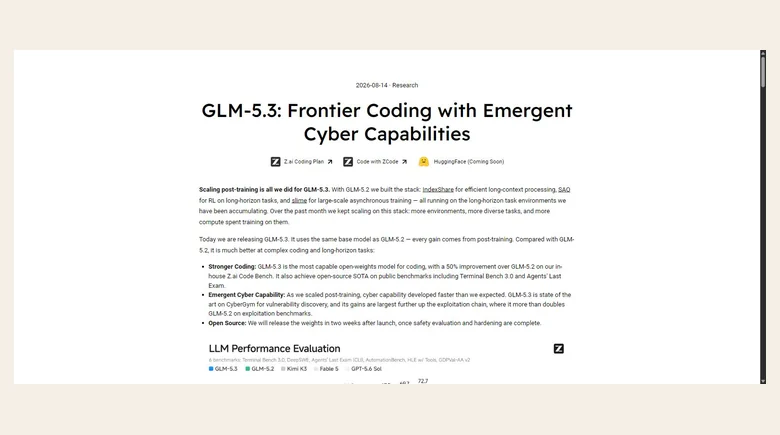
Z.ai's launch post is worth a quick look before you spend anything. To their credit, they are upfront about what is not ready.
Step 1: Check Whether You Have to Pay at All
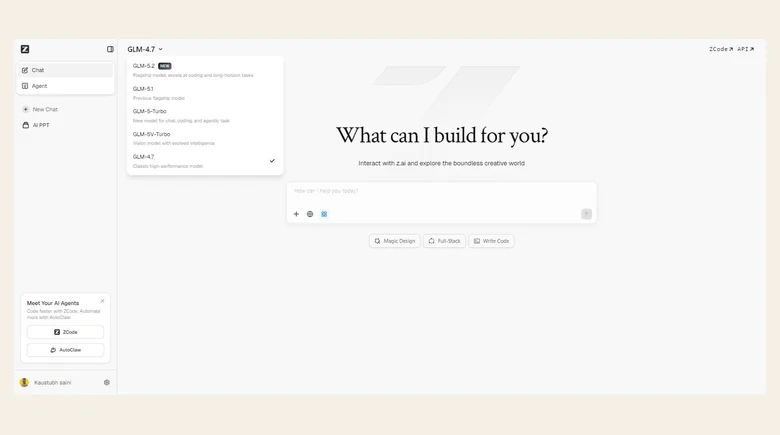
Start with the free option, because checking takes about 10 seconds. Open chat.z.ai, sign in, and click the model name in the top left corner.
You will see 5 models. GLM 5.2 is at the top with a NEW badge, then GLM 5.1, GLM 5-Turbo, GLM 5V-Turbo and GLM 4.7. No GLM 5.3.
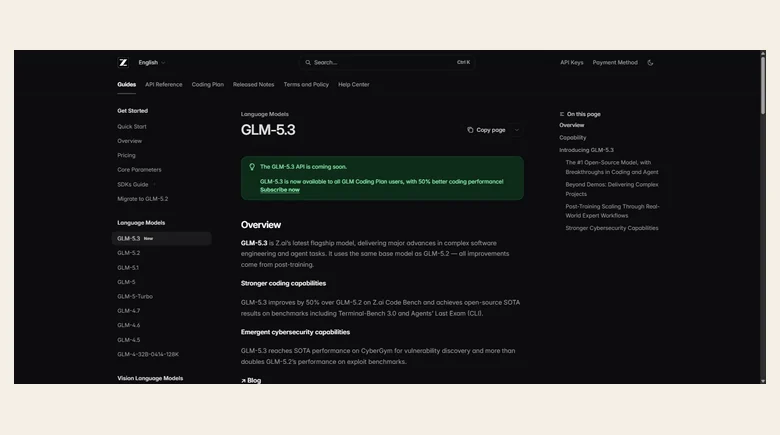
The pay as you go API is not open either, and Z.ai says so itself. The GLM 5.3 model page opens with a banner telling you the API is coming soon. The official price list stops at GLM 5.2, with no row for 5.3 anywhere on it.
You can cross off 2 more options while you are here. OpenRouter lists 14 Z.ai models and the newest is GLM 5.2. Z.ai's Hugging Face page stops at GLM 5.2 too, so you cannot run it on your own machine. If some site offers you free GLM 5.3 today, you are almost certainly getting GLM 5.2.
So yes, you have to pay. Here is how the rest of it goes.
Step 2: Subscribe to the GLM Coding Plan
Head to z.ai/subscribe and pick a tier. All 3 of them get GLM 5.3, so the cheapest plan runs the same model as the priciest one.
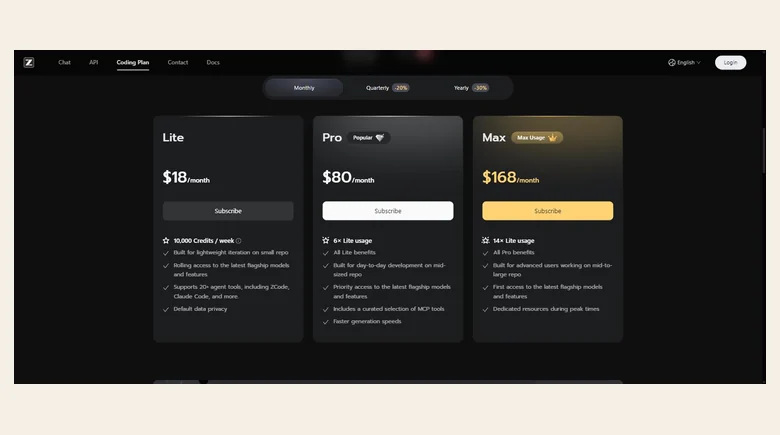
Lite is $18 a month and gives you 10,000 credits a week. Pro is $80 for 6 times that much. Max is $168 for 14 times. Pay yearly and Lite drops to $12.60 a month.
You are paying for how much you can run, not for a better model. Z.ai suggests Lite if you work on 1 project at a time, Pro for 1 or 2, and Max if you like running several agents at once. Start on Lite. If you outgrow it, moving up takes effect straight away and Z.ai credits back whatever you did not use.
Step 3: Create Your Z.ai API Key
Open the API Keys page from the sidebar on the Z.ai platform, then click Add API Key. Put the key somewhere safe right away, because Z.ai only shows you the full thing once.
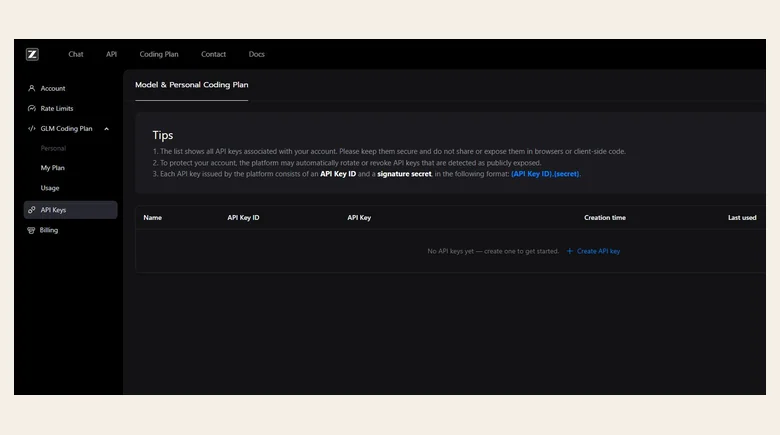
2 things in that Tips box will matter later. Your key is really 2 parts in 1 string, an API Key ID and a signature secret with a dot between them, so copy all of it. Z.ai also hunts for keys that people have left in public code, and revokes any it finds.
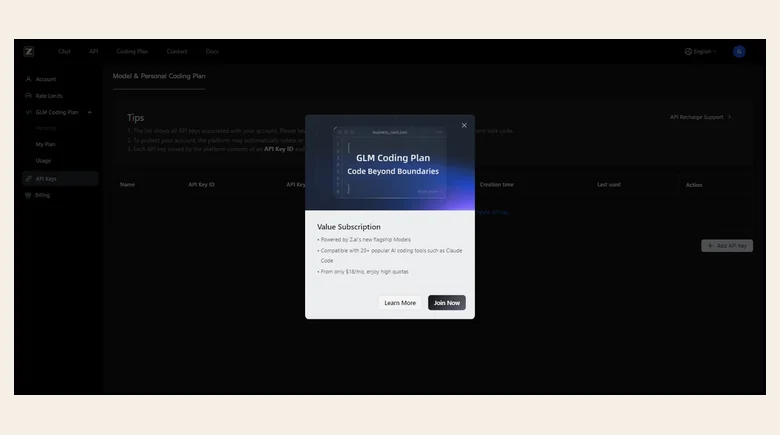
Not subscribed yet? This is where you find out. Click Add API Key without a plan and you get a subscription prompt where the key dialog should be.
Step 4: Point Claude Code at GLM 5.3
Before any of this works, you need Claude Code itself. It runs on Node.js 18 or newer, and on Windows you also need Git for Windows. Then install it.
npm install -g @anthropic-ai/claude-code
      cd your-project
      claude
Now you connect your plan. There are 2 ways to do this, and the first one is much easier.
Z.ai gives you a setup wizard. Run this single command and it finds your tools, installs anything missing, asks for your key, and writes the config for you. It knows Claude Code, OpenCode, Crush and Factory Droid.
npx @z_ai/coding-helper
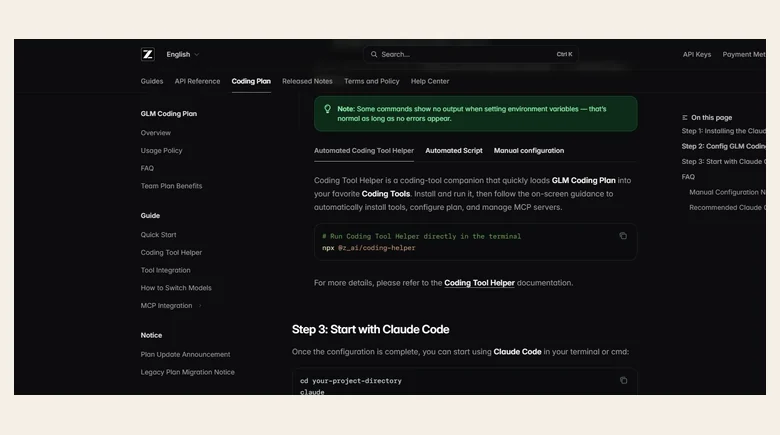
The wizard asks you for a language, a plan, your key and your tools, in that order. If something goes wrong, run coding-helper doctor and it will tell you what. On a work laptop behind a proxy you have to set HTTP_PROXY and HTTPS_PROXY yourself, because Node will not pick up your system proxy on its own.
If you would rather do it by hand, you edit the config file. On macOS and Linux it lives at ~/.claude/settings.json. On Windows, look for the .claude folder in your user directory. Add these keys and leave everything else in the file alone.
{
        "env": {
          "ANTHROPIC_AUTH_TOKEN": "your_zai_api_key",
          "ANTHROPIC_BASE_URL": "https://api.z.ai/api/anthropic",
          "ANTHROPIC_DEFAULT_HAIKU_MODEL": "glm-4.7",
          "ANTHROPIC_DEFAULT_SONNET_MODEL": "glm-5.3[1m]",
          "ANTHROPIC_DEFAULT_OPUS_MODEL": "glm-5.3[1m]",
          "CLAUDE_CODE_AUTO_COMPACT_WINDOW": "1000000",
          "API_TIMEOUT_MS": "3000000"
        }
      }
When a setup does not work, it is nearly always one of those first 2 lines. The token is what logs you in. The base URL is what sends your requests over to Z.ai. Without both of them, the model names do nothing at all.
![Z.ai's model switching guide, which is where the glm-5.3[1m] values come from. **Image Credits:** Z.ai](images/glm53-switch-guide-780.webp)
That [1m] on the end is what gives you the 1 million token context, and it only works if you also set the compaction window. Leave the suffix off and you quietly get the short context. If Claude Code tells you no such model exists, run claude update and try again.
Cline works a little differently, with 4 fields in its own settings panel. Pick OpenAI Compatible as the provider, set the base URL to https://api.z.ai/api/coding/paas/v4, and paste in your key. Then choose Custom Model and type glm-5.3. Z.ai also asks you to uncheck Support Images and set the context window to 1000000.
Step 5: Check It Worked and Pick an Effort Level
Close every Claude Code window you have open, start a fresh terminal, and run it again. A session that is already running will not pick up your changes.
cd your-project
      claude
      /status
2 lines in that output tell you if it worked. The settings source should point at your own settings.json, and the model should say glm-5.3 or glm-5.3[1m]. If Claude Code asks whether you want to use this API key, say yes.
Now pick how hard you want it to think. Type /effort in a session to change levels, and max is what you get by default.
lowkeeps things quick and cheap for small edits.highsuits harder work across a few files.maxis the default, and Z.ai recommends it for coding.
For your first go, give it something real. Z.ai trained GLM 5.3 on long jobs that stretch across a lot of files, so asking it to build a snake game tells you very little. Hand it a failing build, a migration you have been putting off, or a bug that runs across 3 files. Then see how it compares with whatever you use today, and against what other people got out of it.
Step 6: Use ZCode If You Would Rather Skip the Terminal
Z.ai built its own desktop app for GLM 5.3 and calls it the official harness. ZCode comes in Windows, macOS and Linux builds, and it runs on the same subscription you already bought.
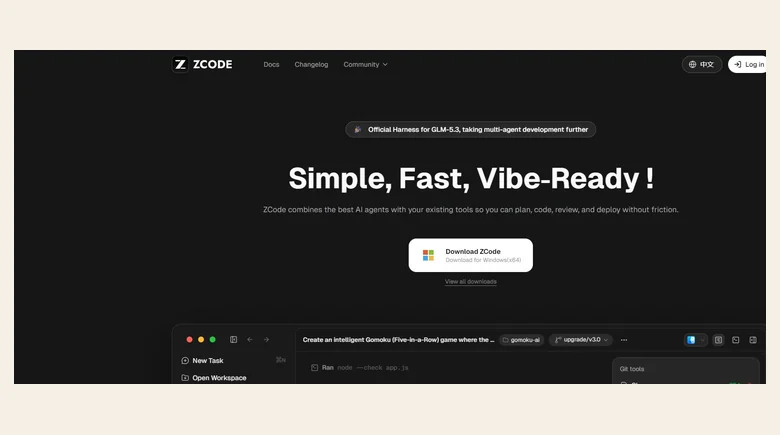
Setup takes about 3 clicks. Open Settings at the bottom left, go to Model Providers in the sidebar, and find the Z.ai Open Platform section. Paste your key in there, or hit Use Subscription and let it fill the key in for you once you log in.
Filling the fields yourself? Set the OpenAI base URL to https://api.z.ai/api/coding/paas/v4 and the Anthropic base URL to https://api.z.ai/api/anthropic. Save it, then pick GLM 5.3 from the model menu.
When Something Breaks
4 problems cover almost everything you are likely to hit.
- Error 1113 Insufficient Balance sounds like a money problem, but it is a setup problem. 3 things have to line up. Your tool has to be on Z.ai's supported list. Your base URL has to match the one for that tool. And your model has to be GLM 5.3, GLM 5-Turbo or GLM 4.7.
- Your config changes did nothing. You probably have an old session running. Close every window, open a new terminal and start again. If that does not help, delete
settings.json, let Claude Code build a fresh one, and run your JSON through a validator to catch a stray comma. - API Key invalid usually means you only copied half of it. The key is an ID and a secret with a dot between them, so paste the whole string.
- Permission denied when you install. Run your terminal as administrator on Windows, or put
sudoin front on macOS and Linux. Usingnpxsidesteps the whole thing.
For anything else, coding-helper doctor checks your tools and config in one go.
Takeaways
Use the wizard. It turns a 20 minute job into a 10 minute one, and it will not forget the base URL the way you might at midnight.
At $18 a month, Lite is cheap enough that you can just try it and find out. Z.ai says Terminal Bench 3.0 went from 4.6 to 28.3 and DeepSWE v1.1 from 46.2 to 66.9, which sounds great. But Z.ai ran those tests on its own model, and it keeps the Code Bench tasks private. Your own codebase will tell you more than any of those numbers. If you want a second opinion first, we rounded up what real users found in their first 36 hours, including the cost tests and the benchmark where the gain disappears.
If you want to build a product on top of GLM 5.3, hold off for now. The Coding Plan only covers approved coding tools, nobody knows the per token price yet, and the weights are still about 2 weeks away. Any one of those could change what this costs you.
So keep an eye on late August. That is when the weights are due, and the first time anyone outside Z.ai gets to check whether all of this is true.