

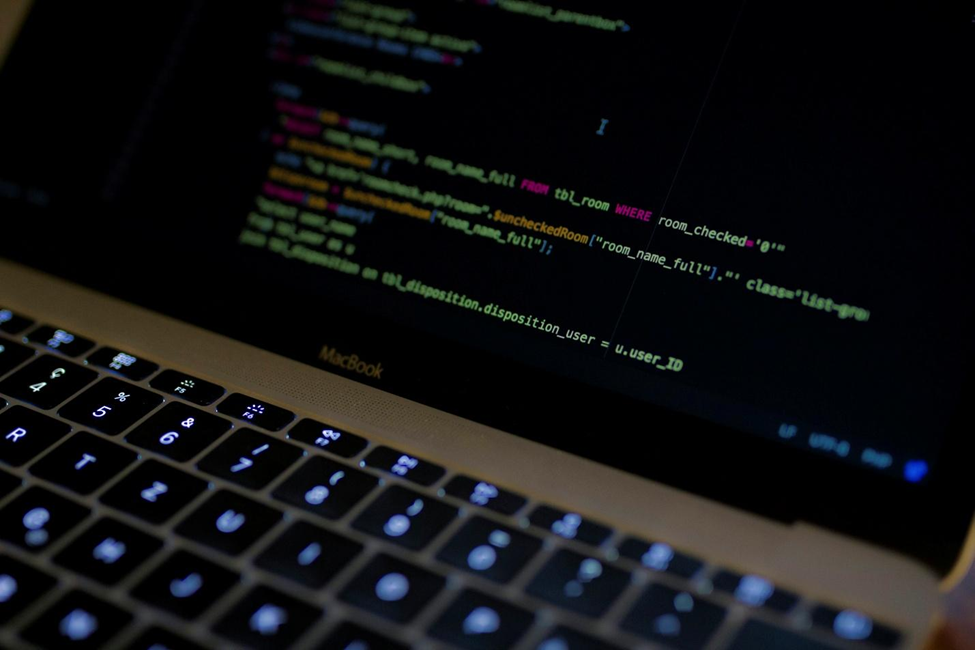


Mac has been quietly becoming the default machine for many developers, and that’s for valid reasons. Walk into any coworking space, and you’ll see a sea of glowing apples. That familiarity has a side effect, however, which is that a lot of developers assume that platforms automatically handle security for them. It mostly does, until it doesn’t.
Threat actors nowadays notice the shift in the market share, and Mac cybersecurity is not an afterthought anymore, at least not like it once was. Knowing where the gaps are, especially when your machine holds SSH keys and API tokens, is what matters.
What That “Can’t Verify” Warning Is Telling You
If you set up your Mac for development reasons, you almost certainly saw this warning: “Apple could not verify [app name] is free of malware.” Or sometimes, you might see the longer version saying “macOS cannot verify that this app is free from malware,” both appearing when you try to open something downloaded outside the App Store.
The unfortunate reality is that most developers click past it after the third time. While that’s understandable, as a lot of legitimate dev tooling isn’t distributed through the App Store, it can be risky. Requiring a CLI utility or internal build artifact isn’t realistic, sure, but dismissing the warning entirely is a different thing.
What Gatekeeper isn’t flagging isn’t necessarily that the app is malicious; it’s that Apple hasn’t been able to confirm it isn’t. That’s a meaningful distinction. The reality is that attackers have gotten good at packaging malware inside apps that look exactly like the ones you want to obtain, maybe a patched version of a real tool or a compromised build passed through a Slack channel. That’s why running another layer of protection alongside macOS tools helps catch what Gatekeeper can’t evaluate, making Moonlock antivirus for your Mac a great solution for scanning files in real-time. Something designed specifically for macOS is the best option rather than adapting something from a Windows-first codebase.
At the end of the day, overriding the warnings you get might eventually get you in trouble. So, a simple scan will save you time and cost in the long term.
What Developers Expose That Regular Users Don’t
The conversation revolving around web development on Mac usually focuses on the same things: keep your software updated and don’t download sketchy things. That advice, while solid, undersells how much more attack surface a developer’s machine carries compared to a regular person’s.
Think about what a typical setup would look like after some months of work: Homebrew with a long list of installed packages, a .bash_profile that’s been extended with environment variables and sometimes includes API keys, SSH keys for multiple services, and browser sessions signed into staging environments. That’s much richer in content and value than a normal device that only runs email and Slack.
Infostealers, those malware that scan and exfiltrate data, are increasingly written for developers in mind, as they know where SSH keys live and know how to look at dotfiles. A credential sitting in a shell config file because it was simply temporary for you three months ago is exactly what the threat is trying to extract.
Application Security Trends Worth Noting
The biggest application security trends right now aren’t dramatic zero-days but quieter and a bit harder to spot. Supply chain attacks against open-source packages have become a consistent pressure on developer workflows.
Malicious packages published to npm and PyPI, compromised maintainer accounts, and typosquatting on popular libraries are the things you might install without thinking twice. A dependency that is poisoned doesn’t need to break your build to do major damage, as it just needs to run once during install.
CISA has been tracking this category as a priority threat and publishes ongoing guidance for development teams as part of their security design initiative, and the framing is worth noting: the question isn’t whether you trust a package’s output, but whether you’ve verified its integrity.
Habits That Reduce Your Risk
So now, let’s discuss the practical things you should consider, specific to developers:
1. Audit your Homebrew installs. Packages can be updated or transferred to new maintainers, so it’s worth checking it out on a regular basis.
2. Stop storing secrets in shell configs. We’re all guilty of this, but move credentials into a secrets manager or use environment-specific tooling like direnv.
3. Check what has disk access. You simply go to your Full Disk Access option under Privacy & Security to find out.
4. Don’t bypass Gatekeeper warnings on autopilot. If you’re approving an unsigned binary, spend at least a minute confirming where it came from.
5. Keep macOS and the dev toolchain updated. This one is boring and repetitive, sure, but patches in new releases address the gaps that are often being used.
Conclusion
At the end of the day, Mac security has never been a reason to switch machines, but that doesn’t mean you shouldn’t be paying attention. As a developer, you should be more wary of what goes into your laptop, especially when you’re working as part of a team. A few small habits and an extra layer of protection are all you need to shut this gap down.